Getting started
Set up permissions
Give Saryu the macOS access needed for each capture tool.
What Saryu asks for
Saryu asks for access only when a feature needs it. Screen Recording is required for screen, window, and area capture. Camera, Microphone, Accessibility, and Speech Recognition support the matching capture and editing tools.
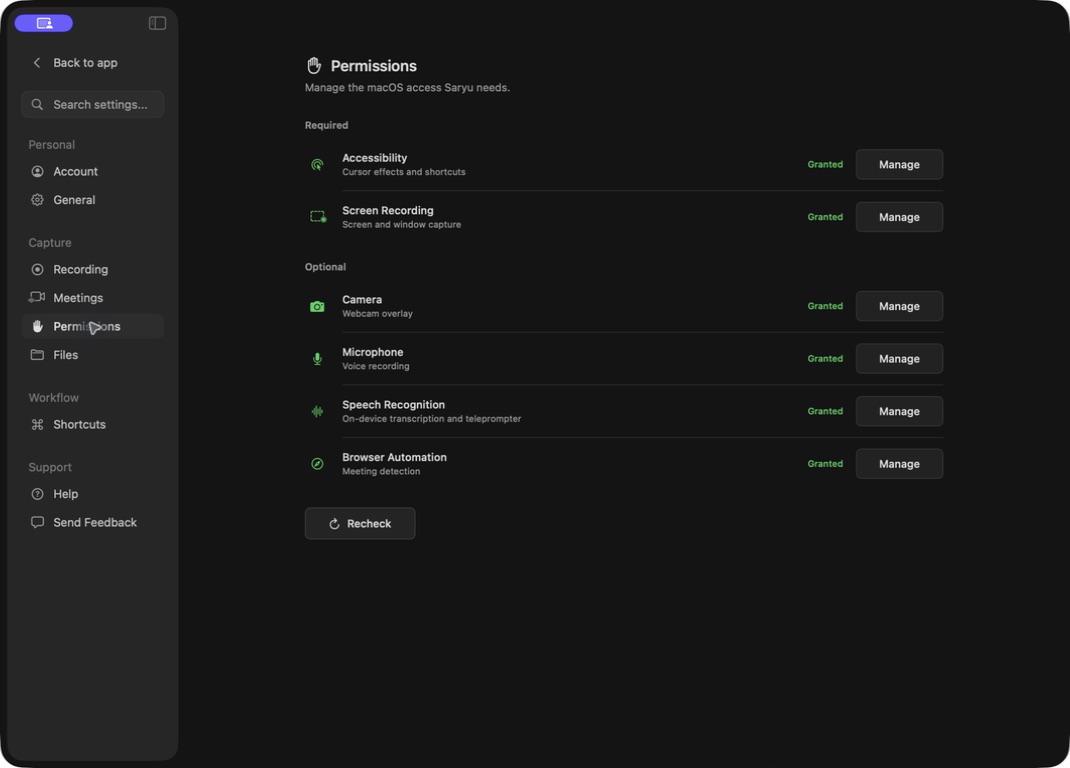
Grant access
- Open System Settings → Privacy & Security.
- Select the permission named by Saryu.
- Turn Saryu on.
- Quit and reopen Saryu when macOS asks you to.
You can leave Camera or Microphone off when you do not use them. Saryu will keep working with the features that still have access.
Reset a permission
If macOS shows access as enabled but capture still fails, turn that permission off. Restart Saryu, turn it on again, and restart once more.
Moving or replacing the app can make macOS see a new copy. Keep Saryu in Applications to avoid repeated prompts.
Need a human?
Still stuck?
Send a bug report with the right area already selected. Use email for private account or payment questions.